Data configuration setup
This page describes the steps to import the configuration required for all modules in the self-guided training.
Click on the CATALOG tab at the top to navigate to the Data Catalog page.
Look for TRAINDP (Training Data Provider) in the list of Data Providers in the system.
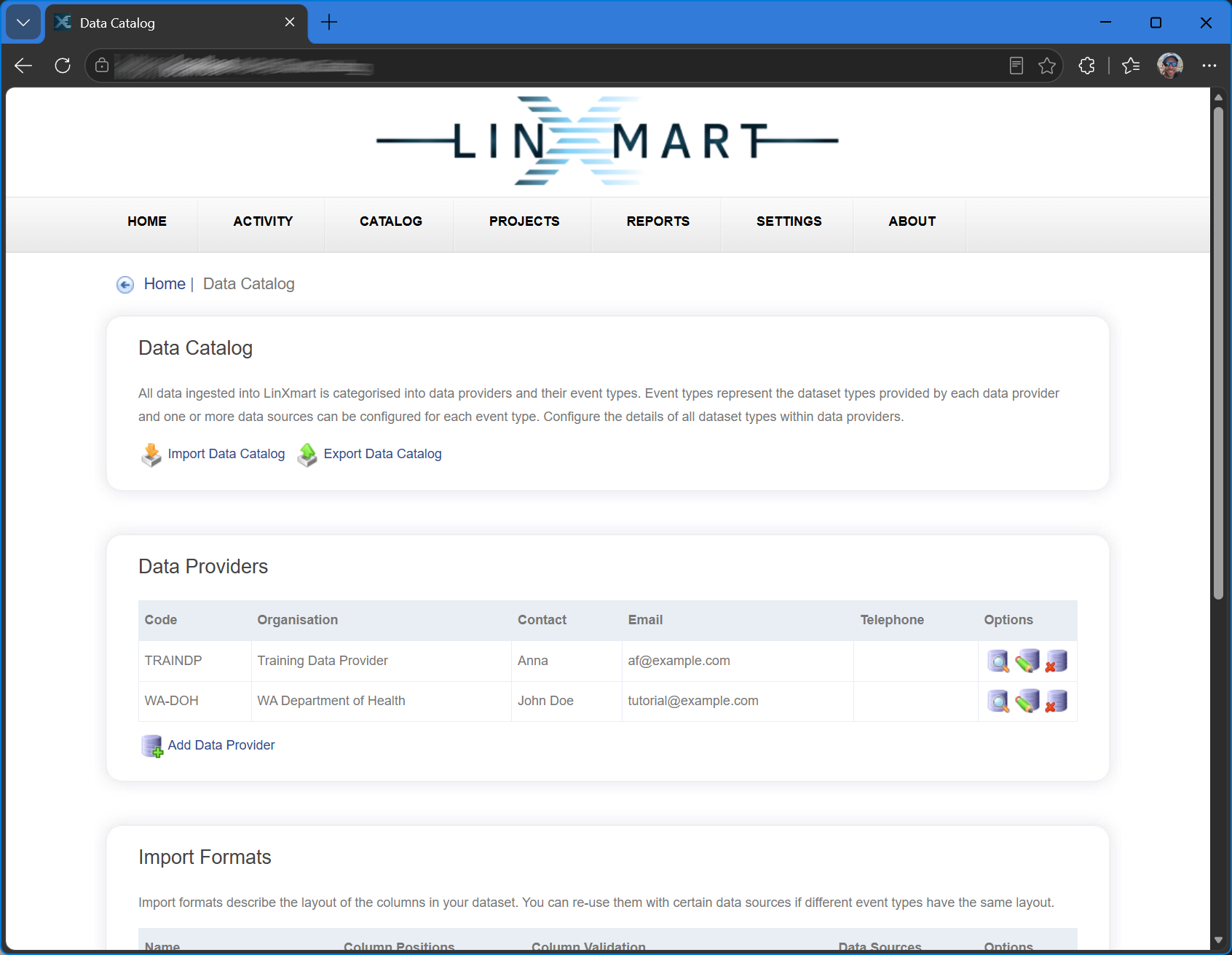

If TRAINDP is shown in the list of data providers, you do not need to do anything more. The data configuration setup has already been done!
If it isn't shown, click on the Import Data Catalog link.
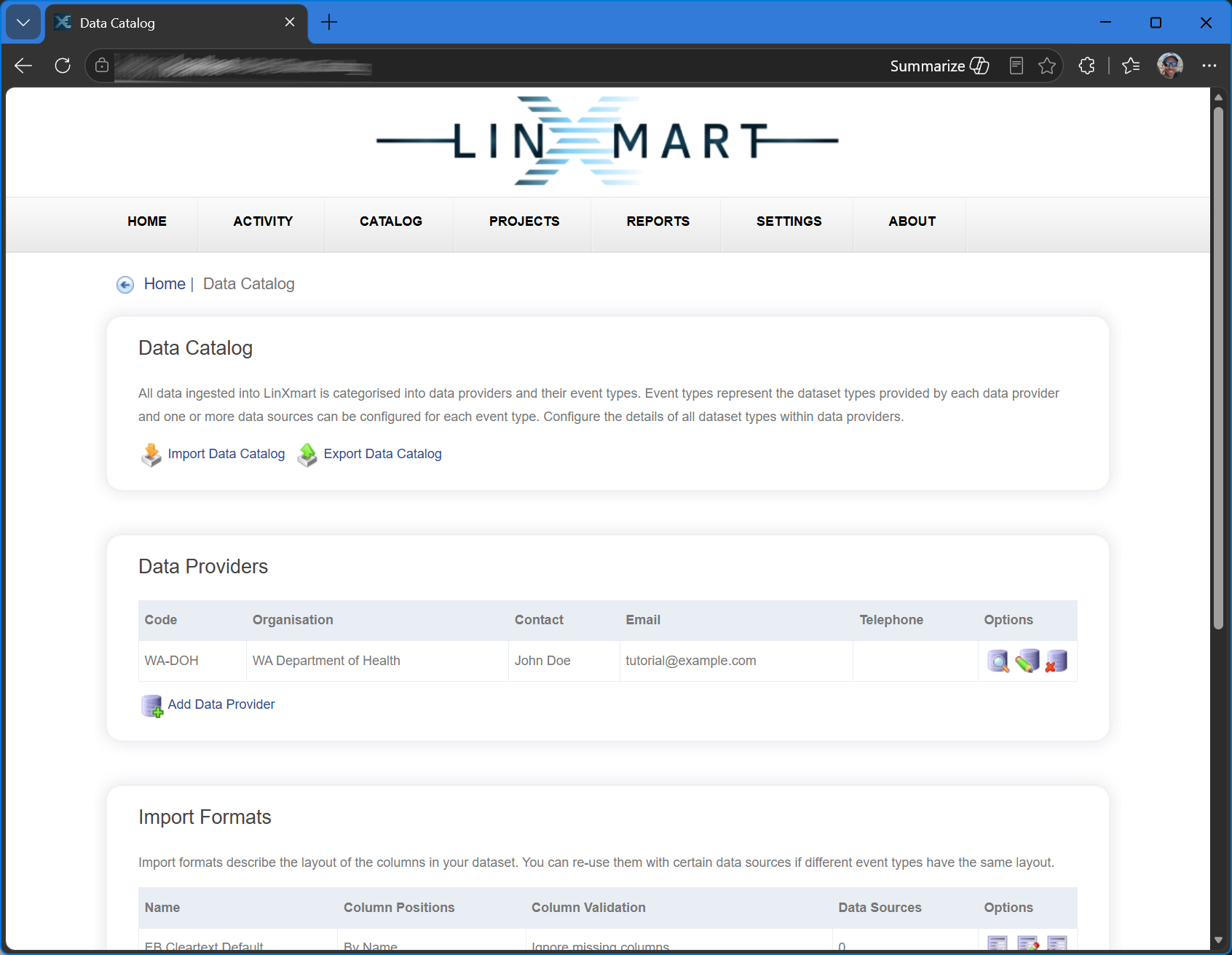
Click on Choose File and find the DataCatalog_TRAINDP_only_config.json file in the training data that was downloaded.
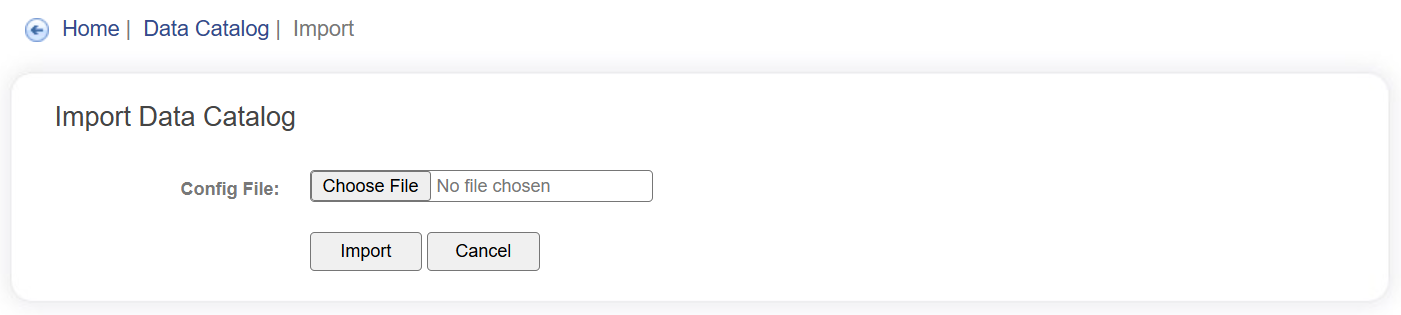
Click Import.
The file to import is validated and a summary of the contents are displayed. As this should have been imported yet, there should be no validation issues presented. Conflicts will be displayed if the file has been previously imported.
If there are no conflicts, click Import to confirm the importing of the data.
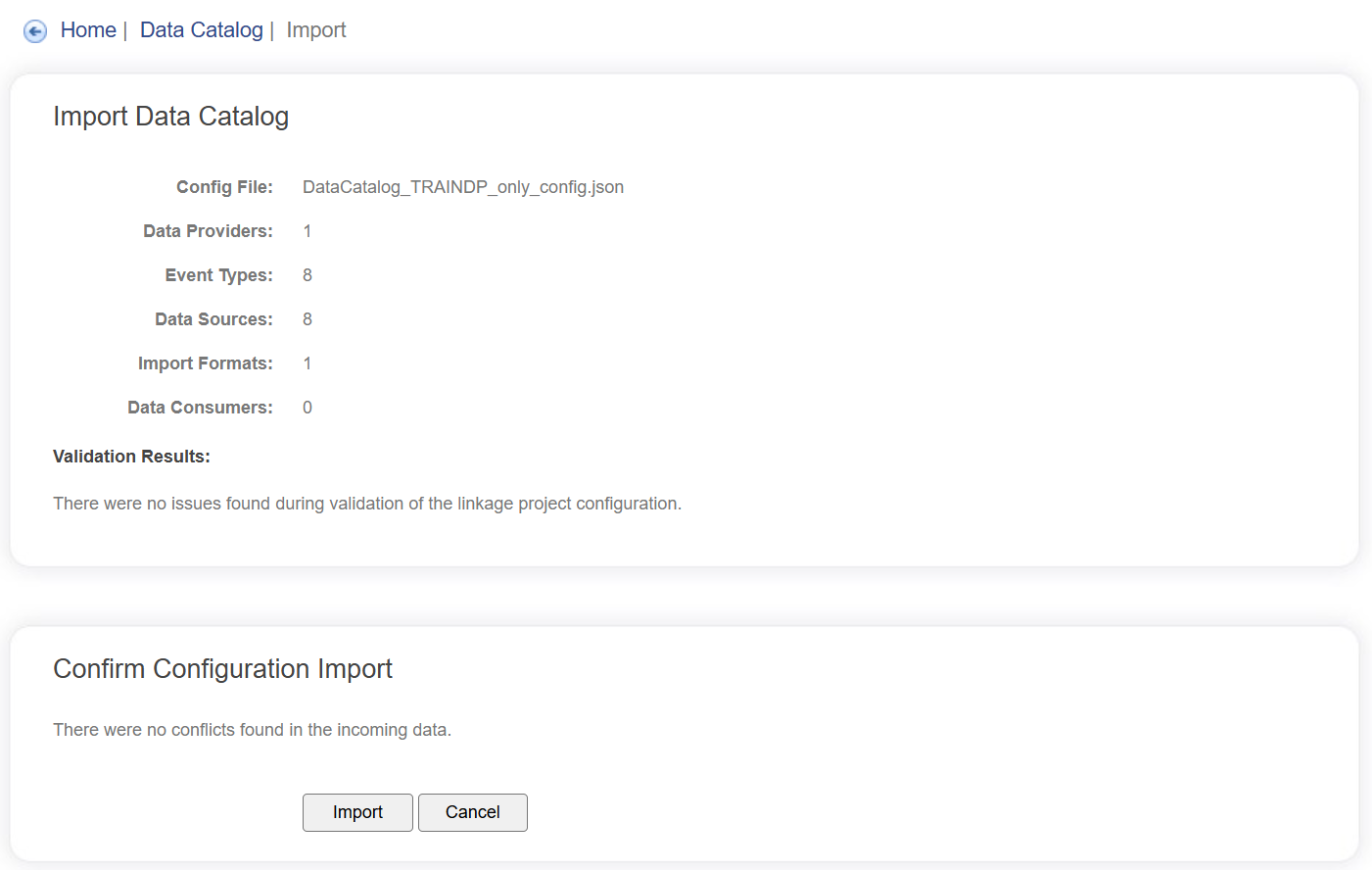
The results of the import will be displayed, showing the Data Providers, Event Types, Data Sources and Import Formats that were imported into the system.
Click on the CATALOG tab at the top to go back to the Data Catalog page. You should now see TRAINDP in the list of Data Providers within the system.