Import Formats
The Import Format provides a mapping between source data and the linkage fields used to match data in the system. While a Data Source determines how data is ingested into the system, the Import Format provides the details on the source schema.
Import Formats fall into two categories:
- Shared - managed independently and assigned to one or more data sources
- Data Source Specific - exist for a single Data Source and can only be managed through that Data Source
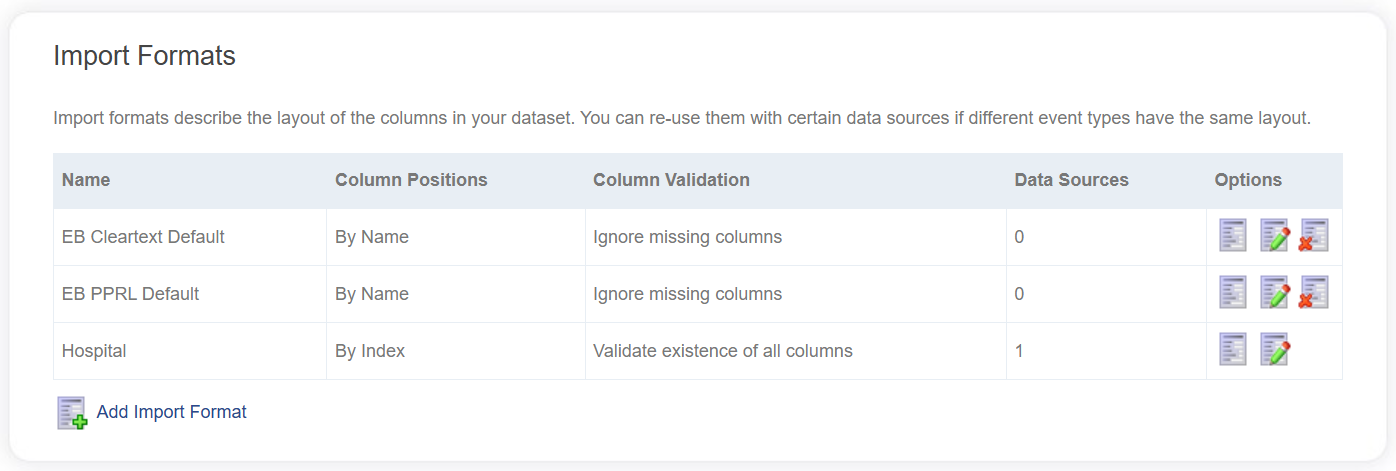
Shared import formats are managed from the main Data Catalog page.
Creating an Import Format
To add a new Import Format, click Add Import Format.
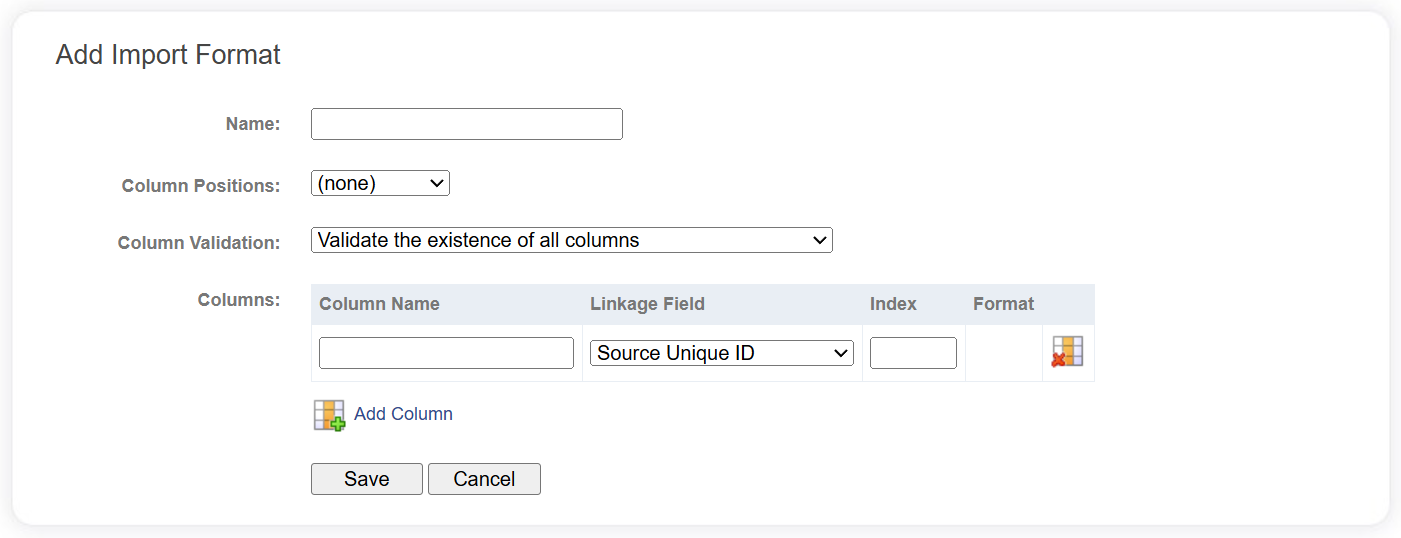
The following fields must be completed when creating a new Import Format.
| Field | Description |
|---|---|
| Name | Each Import Format must be given a unique name. |
| Column Positions | Determines how columns are parsed from the source data. See Column Positions section for more information. |
| Column Validation | Gives you the option to validate the existence of all columns in the data source, or to ignore those that are not found. |
| Columns | Mappings between source columns and LinXmart linkage fields. See Columns section for more information. |
Click the Save button to commit the changes.
Column Positions
By Index Format
Delimited files and other data source types can use this this setting to determine column mappings by the ordinal (or index) of the column.
A delimited file is one in which the fields in each record (such as name, address, date of birth, id, etc.) are separated by a single character, such as a comma or a tab.
 A row of a comma delimited data file.
When configuring rows, each field has a specific Index value that determines which column it refers to. For delimited data files, such as the one above, this is simply the index of the column specified by the delimiters.
- For SQL tables, this corresponds to the Ordinal value of the column in the table.
- For Data Clients, this represents the Ordinal value of the column as defined in the Data Client's dataset.
Use By Index for delimited files that do not have a header row.
By Name Format
Delimited files and other data source types can use this this setting to determine column mappings by the name of the column. Delimited files must have a header row for this to work.
 A row of a comma delimited data file with a header row.
The system will match the name of the Import Format Column with the name of the source column. Note that these names can be overridden for each datasource attached to a linkage project.
Fixed Width Format
A fixed width data file is one in which each field is determined by a start and end position in the record. In these files, a field is given a set number of characters (e.g. 20), and for values that are less than 20 characters in length, the remainder are filled with spaces. LinXmart removes these spaces before processing the field.
 Two rows from a fixed width file.
Columns
Each entry in this list represents a mapping between a source column and a LinXmart linkage field. During the adding/editing of an Import Format, you can add and remove columns without committing any changes. A column can be added by clicking Add Column at the bottom of the list of existing columns. Columns can be removed by clicking the Delete icon to the right of the column to be removed.
Each column has a number of fields:
| Field | Description |
|---|---|
| Column Name | The name of the source column. If this Import Format is Data Source specific, and the source schema can be determined, a drop down list of available columns will be displayed. |
| Linkage Field | The LinXmart linkage field to assign the value of the column. The drop-down list contains all of the linkage fields that are available. |
| Format | This field only appears for some linkage fields. For example, dates can be provided and parsed by the system in a myriad of formats. Below are some example date formats that can be entered. |
Additional fields for determining column positions by index:
| Field | Description |
|---|---|
| Index | The column number of the field in question. The first field in the file has an index of 1, the second field 2, etc. |
Additional fields for determining column positions using fixed width:
| Field | Description |
|---|---|
| Start Position | The column start position of the field in question. |
| End Position | The column end position of the field in question – the position of the last character. |
Most linkage fields have a defined maximum length. LinXmart will notify during processing if the maximum is exceeded and a record was not able to be parsed.
Example dates
| Example date | Format code |
|---|---|
| 11/08/1986 | dd/MM/yyyy |
| 19860811 | yyyyMMdd |
| 1181986 or 11101986 | ddMyyyy |
| 11-AUG-1986 | dd-MMM-yyyy |
| 11-08-86 | dd-MM-yy |
Linkage fields
An important LinXmart field is the Source Unique ID. It is a field in the dataset that contains a unique value for each record in the file. All Import Formats require a Source Unique ID field. It is used by LinXmart to uniquely identify records, and is returned when data is extracted from the system.
If date of birth is supplied as a single field, this can be added as Date of Birth. If it is supplied as components (day, month and year of birth) these can be added separately. However, only full date of birth or the separate components can be added – not both.
The Jurisdictional Linkage Key refers to any field in the dataset that is a unique person identifier (that is, has the same value across different records within the collection belonging to the same person).
In addition to the named personally identifying fields, there are some additional fields (Text Fields 1-15) that can be used to store any other identifiers for use in linkage.
Non-linkage fields can also be stored in LinXmart. These are not used by LinXmart, but are there for the operator’s reference. To add these, select the value (none) for the Linkage Field.
Finally, there also exists a number of Binary Fields. These are used for storing encoded fields in privacy preserving linkage.
The Source Unique ID linkage field is the only required mapping for the list of columns.
Editing an Import Format
Share Import Formats can be edited by clicking the Edit icon for the appropriate Import Format on the main Data Catalog page.
Alternatively, an Import Format can be edited via the View Data Source page; click the Edit icon in the top right of the Import Format section.
Shared Import Formats will indicate how many other data sources are using (and dependent) on this particular one.
Deleting an Import Format
Shared Import Formats can be deleted by clicking the Delete icon for the appropriate Import Format on the main Data Catalog page. However, this is only allowed if the Import Format itself is not being used by any Data Sources.