Import / Export of Data Catalog
There are a few reasons why you might want to import/export the full data catalog configuration:
- Backup of current configuration
- Transfer configuration between environments (e.g. Test and Production)
- Manually reviewing the full configuration
Export Data Catalog
The full set of configurations for every Data Provider and Import Format can be exported from the system into a JSON file. This includes associated Event Types, Data Sources and data source specific Import Formats.
On the Data Catalog page, you will find a Export Data Catalog link. Clicking on this link takes you to another page where the download of the full set of data catalog configuration will begin immediately.

If the download does not automatically occur, you can click on the Download icon to manually trigger it.
An example of the beginning of the exported JSON file:
{
  "EventCategories": [
    "Hospital Admissions",
    "Category"
  ],
  "ImportFormats": [
    {
      "Name": "Hospital",
      "Type": "ByIndex",
      "IgnoreMissingColumns": false,
      "Columns": [
        {
          "Name": "Source Unique ID",
          "Field": "SourceUniqueId",
          "Index": 1,
          "StartPosition": null,
          "EndPosition": null,
          "Format": null
        },
        {
          "Name": "Given Name",
          "Field": "GivenName",
          "Index": 4,
          "StartPosition": null,
          "EndPosition": null,
          "Format": null
        },
...
Import Data Catalog
A JSON file that was created from the data catalog export process can be imported into any LinXmart instance, even the one it originated from.
To import the data catalog, click the Import Data Catalog link on the Data Catalog page. From here, select the JSON file to import and click the Import button.
The file will be validated. If it isn't a valid data catalog export, an error will be displayed. If it is valid, the system will assess what components of the file, determining conflicts, warnings and errors.
A summary of the components in the file will be displayed, along with the validation results that may contain conflicts with existing components in the system.
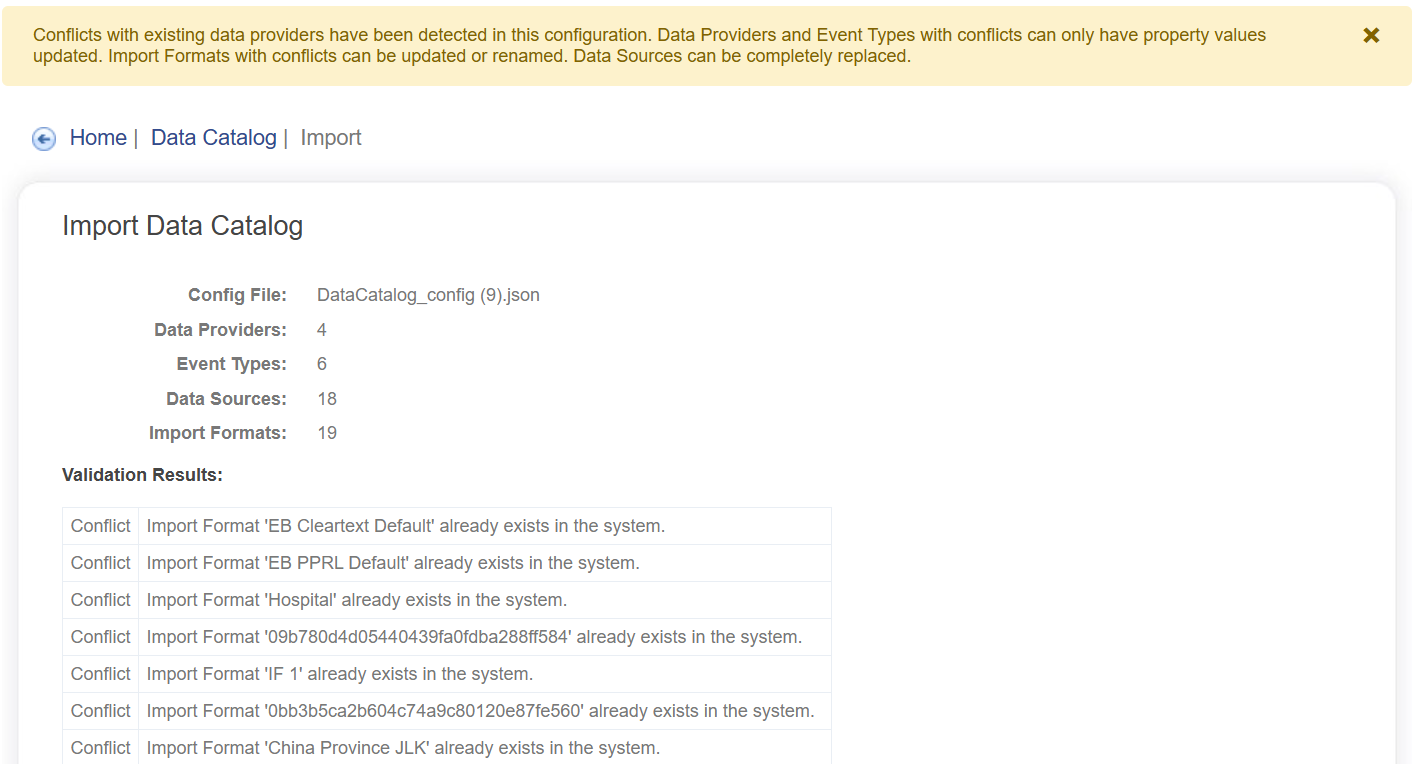
Below the validation results is a confirmation form, prior to applying the new data. If any conflicts are detected, you will have the option to either ignore item with the conflict or update it. Import formats have an additional option to rename the incoming import format to avoid a conflict.
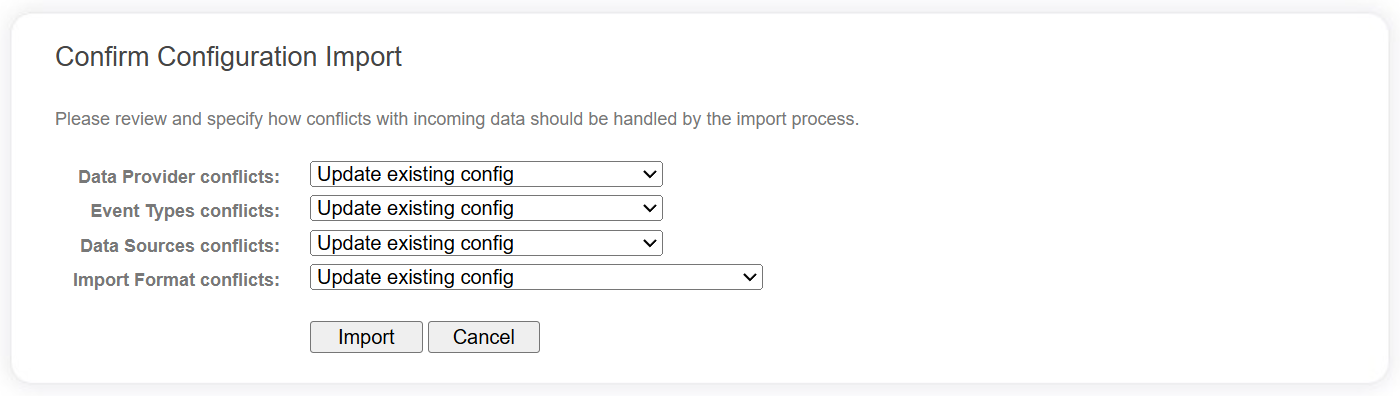
Once you have determined how to manage the conflicts, click the Import button to apply the changes. Alternatively, click the Cancel button to completely cancel the import process.
If you do choose to apply the changes, a summary of the changes made will be displayed.