Data Sources
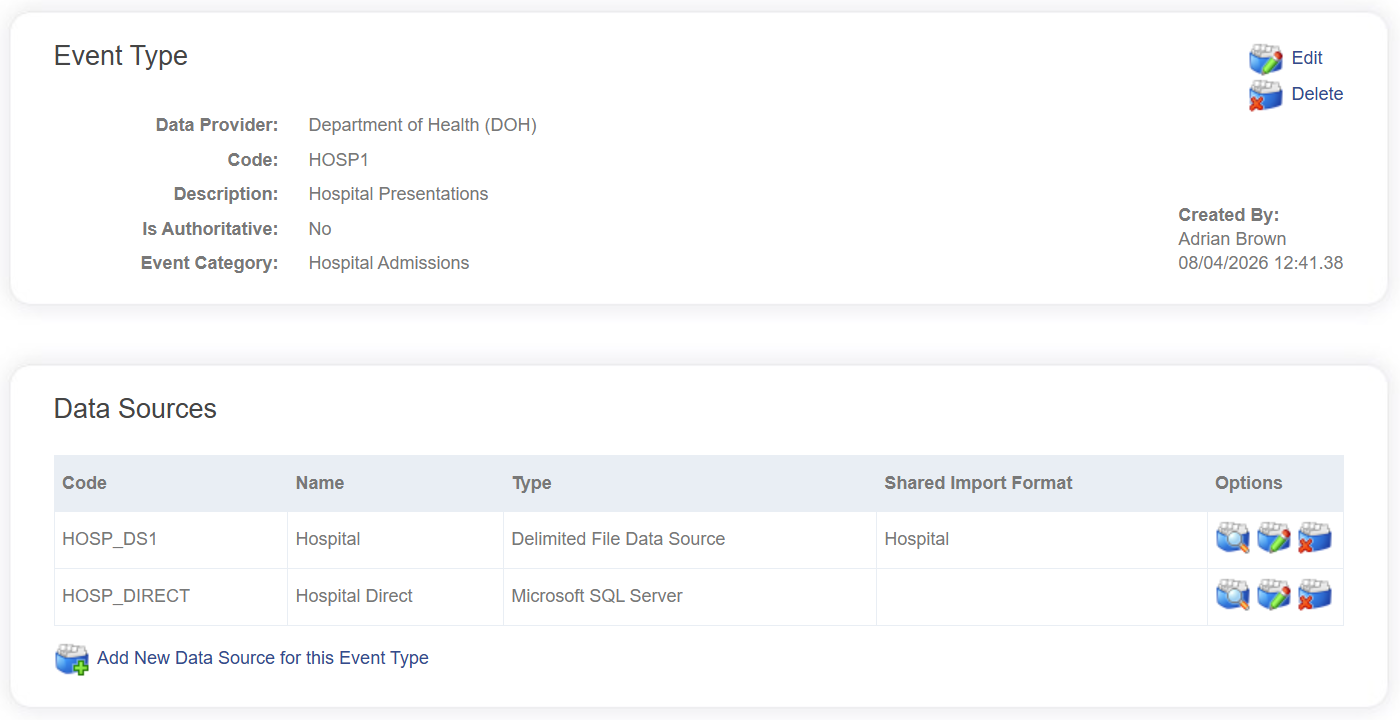
A data source represents the location from which a specific type of data can be ingested into the system. Each Event Type can have a number of data sources that define how data of that type can be sourced. These are listed below the Event Type itself.
Data Source Types
The following data source types are available in LinXmart:
📄️ Delimited File
Delimited file data sources are used to upload LinXmart Envelopes or individual text files directly to Linkage Projects for linkage.
📄️ LinXmart Data Client
Data can be ingested through a LinXmart Data Client, which is deployed to another location and acts as an agent to proxy local data to LinXmart via a secure connection.
📄️ Microsoft SQL Server
If you have data stored in SQL Server or Azure SQL Database, you can pull data directly from a table (or a view) using a Microsoft SQL table data source.
📄️ PostgreSQL
This data source allows you to pull data directly from a table (or a view) in a PostgreSQL database.
📄️ Snowflake
This data source allows you to pull data directly from a table (or a view) within a Snowflake hosted account.
📄️ Azure Blob Container
Pulling data directly from an Storage Account on Azure is a very efficient way of ingesting data into LinXmart, particularly when LinXmart itself is hosted within an Azure environment.
📄️ Text Files
Data can be pulled directly from a folder or file share. This data source provides the ability to ingest data directly into LinXmart from a folder or file share available to the worker process.
Adding a Data Source
To add a Data Source, edit the Event Type and click the Add link at the bottom of the data source list.
The following fields are generic for all Data Sources.
| Field | Description |
|---|---|
| Code | This code is used by LinXmart to identify the dataset |
| Name | Textual description of the data collection being registered. |
| Type | The type of data source, whether a delimited file or a SQL table or other. Changing this drop down will toggle additional fields that are specific to the type of data source. |
Clicking the Add button will validate all properties and save the new data source. If the data source type can provide its own schema (i.e. you are not given an option to select an existing Import Format), the system will read the data source schema and create a default set of field mappings specific to this data source.
Editing a Data Source
A data source can be edited by first selecting a data source to view from the Data Sources listed under an Event Type, and then clicking the Edit button on the View Data Source page.
Almost all fields are editable for the data source, including the Code. This Code can be referenced by clients of the web API, so keep this in mind if you choose to change it.
The data source type cannot be changed. If this requires changing, you must delete the data source and create a new one of the appropriate type.
Deleting a Data Source
A data source can be deleted from the system by an authorised operator. Unlike Data Providers and Event Types, this does not trigger the deletion of any records.